Backing Up, Restoring, Delicencing and Clearing Sales on SamTouch
Backing Up Data and Restoring/ Transferring Programs
An important part of making sure SamTouch runs smoothly and prevent issues in the future is ensuring that you are making backups of SamTouch. SamTouch backups are very easy to make and will save a lot of lost time in the future should there ever be a situation where you need to restore or transfer a program.
Backing up SamTouch Data
When SamTouch installs, it installs as default to the C: drive on the terminal you have installed it on and creates a folder on there simply called SamTouch. This folder holds all the core files of SamTouch needed for it to run, as well as the reports, logs, journals and the actual program itself so it is very important that backups are made of this folder on a regular basis. Here we will run through how to backup SamTouch data
Backing up the SamTouch folder manually
The way we can backup SamTouch is by simply making a manual copy of the folder which is on the C:\ drive and place this in another location which we can refer to should we need to use it again in the future. This could be simply in a folder in Documents or saved on an external storage device.
Here is how you can do this:
- Navigate to This PC
- Double click on the C: drive
- Locate your SamTouch folder
- Right click this folder and click Copy
- Navigate to where you are wanting to save this backup (Documents, Desktop, external storage device etc.)
- Right click in this location and move your mouse to New
- From New select Folder
- This will create a new folder which you can rename. A good thing to name it would be something like SamTouch Backup – Tenants Name – Todays Date – Terminal Number
- Open this folder once you have named it and paste the SamTouch folder in here
This will now copy over the SamTouch folder from the C: drive and make a copy of it which is now your backup.
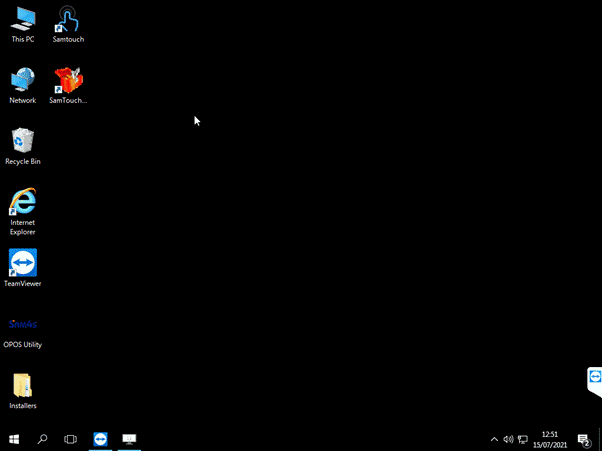
Restoring a backup of data to SamTouch
There are a few different scenarios where you may need to restore a backup of SamTouch, may this be a complete SamTouch folder restore, or just the SDF file to put a different dataset on the terminal. Here we will run through how to restore the backup/ data into SamTouch.
Adding/ replacing an SDF from a backup to the Data folder
Any program within SamTouch can be found in the SamTouch -> Data folder from the C: Drive. This folder contains an SDF file and a folder called Demo. The SDF file that you find directly in the Data folder is the default program. If you were to open up the SamTouch Configuration Tool and go to the Data To Use tab, this is represented by the top option which says Default. If you wish for your program to replace the current default program, you will want to overwrite the SDF file in the Default folder with the SDF file that you have backed up. However, if you do not wish to replace the default program, you can instead go into the Demo folder and create a new folder in here. Once you have created this new folder, you can paste the SDF file into this folder. After it has copied into here, if you go back to the SamTouch Configuration Tool and go to Data To Use you should now see a new option to choose from, which is the new folder we just created.
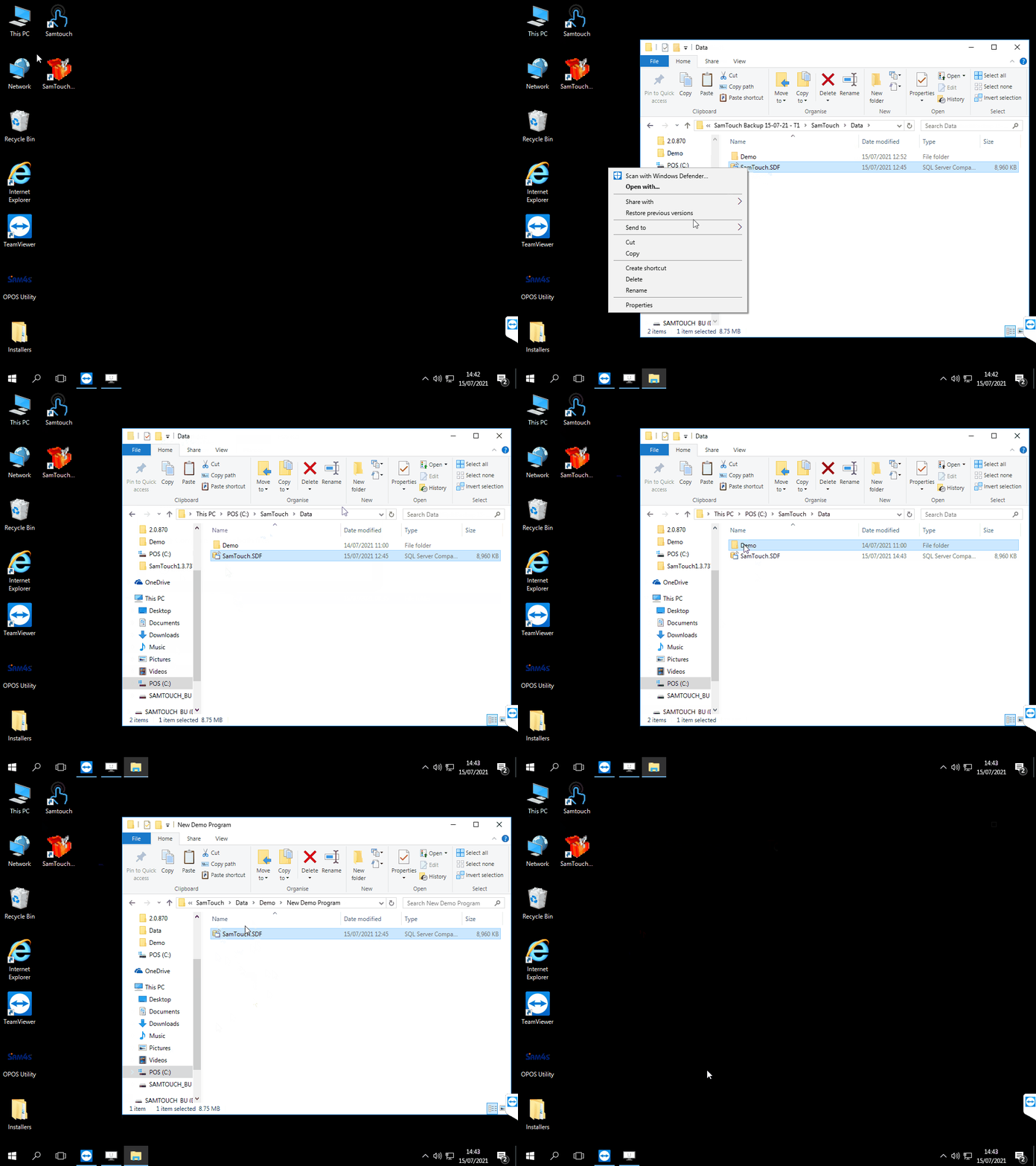
As we are adding this terminal to the system, you will also need to change the terminal number in the SamTouch Configuration tool to the next available number in the network and ensure it is in the same Subnet ID.
When restoring a SDF from another machine, if that other machine has been licenced you may come across an issue where it does not let you launch SamTouch as it is looking for the licence from the previous machine. Please see below how to delicence/ licence should you need to do this.
Delicencing SamTouch
When transferring data from one machine to another, you may come across an issue where it does not let you run SamTouch as the data you have copied over is licenced to the other machine, so it will give you a message of Invalid Hardware ID. In order to get around this there are two methods to do so.
Add the licence for the machine it is on
If you have a licence for the new machine you have transferred the SamTouch SDF file on to, you can simply go ahead and enter the licence key for this, and it will then allow you to launch SamTouch with this file.
Delicencing the SDF completely
However, if you need to completely delicence the SDF file for it to run in Demo mode, you can do this also. The first thing we will need to do for us to be able to delicence is ensure that Windows shows Hidden Files and Folders extensions. To do this you will need to do the following:
- From the desktop go to This PC
- On the new window, you should see an option which says View, click this
- From the View window, click the image on the right-hand side above Options
- This will open Folder Options. From here, click the View
- On the new tab, under Advanced Settings look for the option which says Hide extensions for known file types and make sure this is unticked.
- If it is unticked already, this is fine and you can close the window, however if it is not, untick it and then click Apply.
Once we have ensured that we can see hidden files and folders, we can now delicence SamTouch. To do this:
- From This PC go to: C: -> SamTouch
- In the blank white space right-click and hover the over New
- From New move over the New Text Document and click this
- This will create a new text file, rename this to the following: me
- Press enter and it will ask to confirm if you want to change the file type, click Yes
Now if you launch SamTouch, it should delicence the SDF file and run in demo mode
Please note: If you wish to licence the machine after delicencing, you will need to make sure to delete the ‘delicence.me’ file from the SamTouch folder before doing so
Clearing Sales on the New Terminal
Now that we have placed the SDF into the new terminal and delicenced the machine, the next thing we need to do is ensure that on the new terminal there are no sales from the machine the SDF was originally on. To clear Sales, in SamTouch use the Master password (101xxxxxxx) to get the Dealer option in the Back office then navigate to Dealer -> Tools. In here, you will have the option Clear all Sales Totals for this terminal. This will clear any sales that were held on this SDF and make the new terminal ready to go.
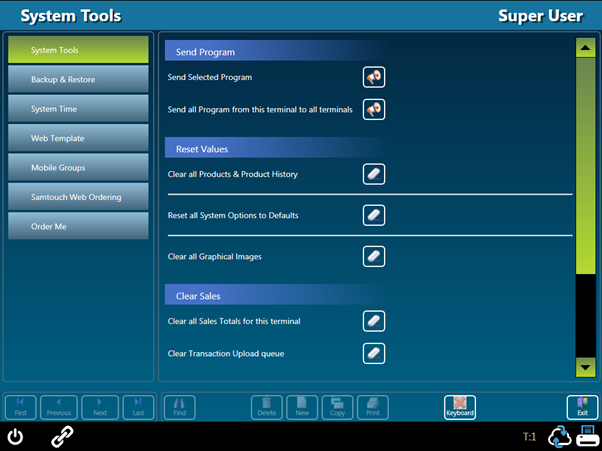
It is of paramount importance that the terminal you clear the sales from is the new terminal and not any of the terminals already in the system.