Installing and Upgrading SamTouch
Here we will run through installing SamTouch onto a new terminal and how to upgrade SamTouch if an older version is already installed.
In order to install/ upgrade SamTouch you will first need to download the latest release of SamTouch. You can do so by visiting our SamTouch Patches page and downloading the SamTouch installer from there for the version you need.
If you are installing SamTouch onto a new machine which has not had it installed previously, or if you are upgrading from a version 1 copy of SamTouch, you will need the SamTouch2_Frameworks installer. However, if you are upgrading from a version that is already on version 2, then you will just need the SamTouch2_Installer.
As a precaution, if you are upgrading SamTouch versions, please make a backup of the current SamTouch folder on C:\ drive and save this in a separate location (e.g: External USB or in the Documents folder) just in case you need to revert to this after the install. Please refer to our Backing Up and Restoring guide should you need help on how to do this.
Once you have this downloaded, double click the executable on the terminal where you want to install SamTouch and this will launch the installer.
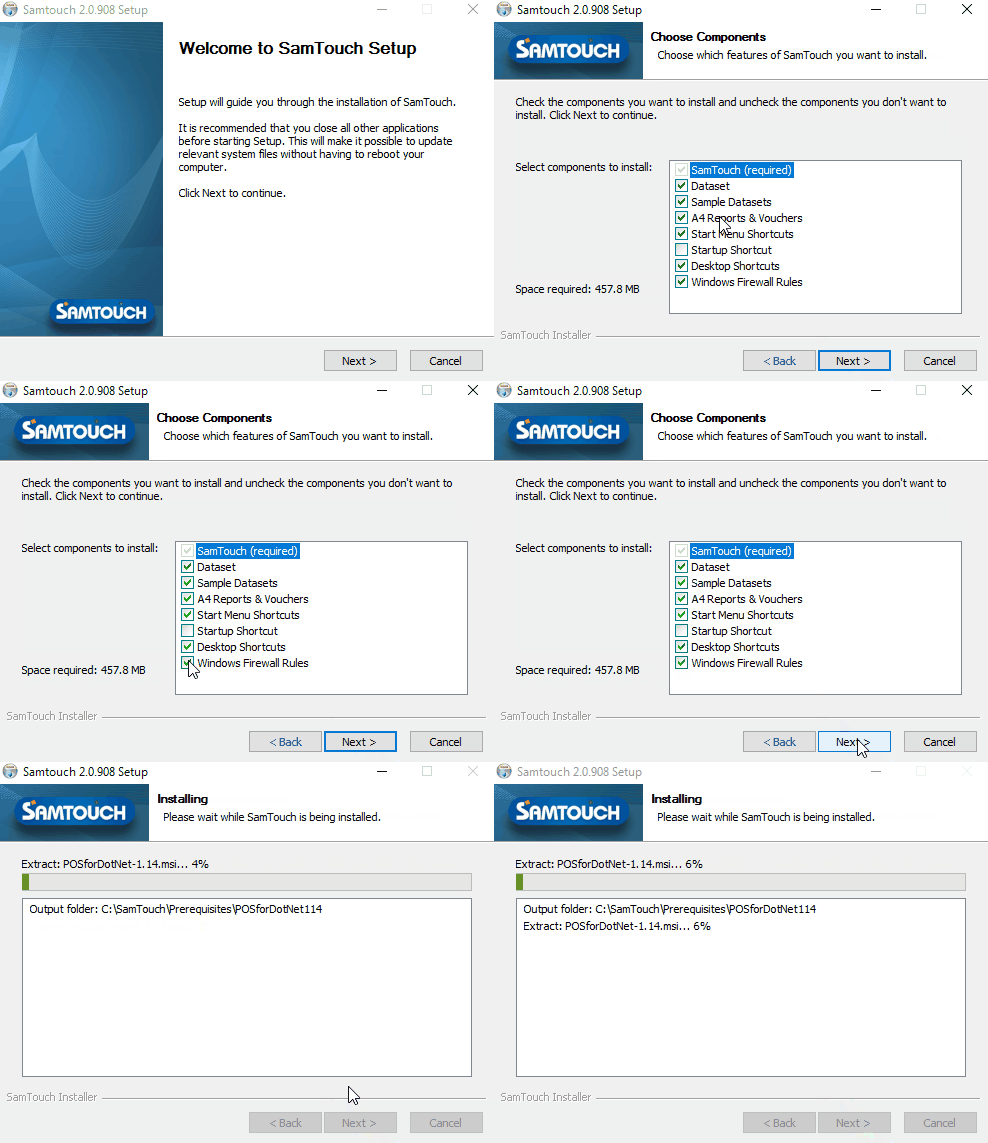
PLEASE NOTE: IF YOU ARE UPGRADING VERSIONS AND YOU DO NOT WANT YOUR DATA BEING OVERWRITTEN, ENSURE THAT DATASET AND SAMPLE DATASETS ARE UNTICKED
Above you can see the installer being run through. As shown above, it will get to a section which shows what Components to install. If you are doing a fresh install, then you will want to leave these as they are, with the option of selecting Startup Shortcut if you would like this added as well.
Once you have confirmed the Components, click Next and then Next again, this should then start installing SamTouch. If you are just running the SamTouch2_Installer executable to upgrade an already version 2 SamTouch then this should just take a few minutes, however, if you are running the SamTouch2_Frameworks_Installer to upgrade from version 1 or are doing a fresh install, then this will take a little while longer as it will also need to install the .NET frameworks.
After the installer has completed, click Finish and the installer will close. If you have just upgraded a previous version 2 SamTouch then you can now launch SamTouch, or the SamTouch Configuration tool. If you have upgraded from version 1 or have done a fresh install, you will first need to restart your terminal before launching SamTouch.