Setting Up and Using the Customer Database
SamTouch has the capability to reference a Customer Database in order to load customers, setup customer groups and link these to a loyalty scheme which can change the price level depending on which group they are linked to and use a point system where the customer can earn points depending on how much they spend and redeem these later. This is customizable to change how many points a customer can earn per the amount they spend and in how many blocks they can spend them in. Here we will be going through how to initially setup the customer server so that SamTouch
SamTouch has a couple of different ways of looking at a customer database, either this can be hosted locally on the master terminal which all the other terminals will look to, or it can be also hosted on SamTouch Office, which is useful for sites where they would want a multilocation customer system as each location would be able to reference this database on the cloud if it is linked to the same tenant. Just be aware that you would need an active internet connection to use the cloud customer database, whereas the local one only does not require any internet connection, and other terminals can access the database if they are networked together.
Local Customer Database
As default the customer database is not installed onto a terminal, even if SamTouch is installed. Another installer is required in order to install SQL database. If you do not have this installer already, you can download this from our FAQ site. Once you have this downloaded, ensure that you have it placed on the terminal from which you are wanting to run the server from and run the installer.
Follow the installation screen and then this will begin to install the SQL Server. Please allow around 5 minutes for this to install as it can take a little while.
Once this has installed, click Finish on the installer window.
We will now be able to configure the database for SamTouch. To do so:-
- Navigate to: This PC -> C: -> SamTouch
- In here you should have an application called exe, double click this
- On the Customer Database Server window, click Configure
- In the server name line, ensure the following is entered: localhost\customerserver
- Ensure Auto connect on startup is ticked
- Click Test Master Connection and make sure the dialog box that says Valid Connection appears and click OK on this.
- Click Save Connection String
- You can now click (re)create database which will ask for a password, this is: DEALER
- (Please note that by clicking this button and entering DEALER it will create a complete new blank database, so if for any reason you already have a customer database on the terminal running via this SQL server, proceed with caution and only click this button if you are certain you want to create a new blank database otherwise you can skip this step)
- Click Test App Connection and click OK on the Valid Connection window
- Click Save
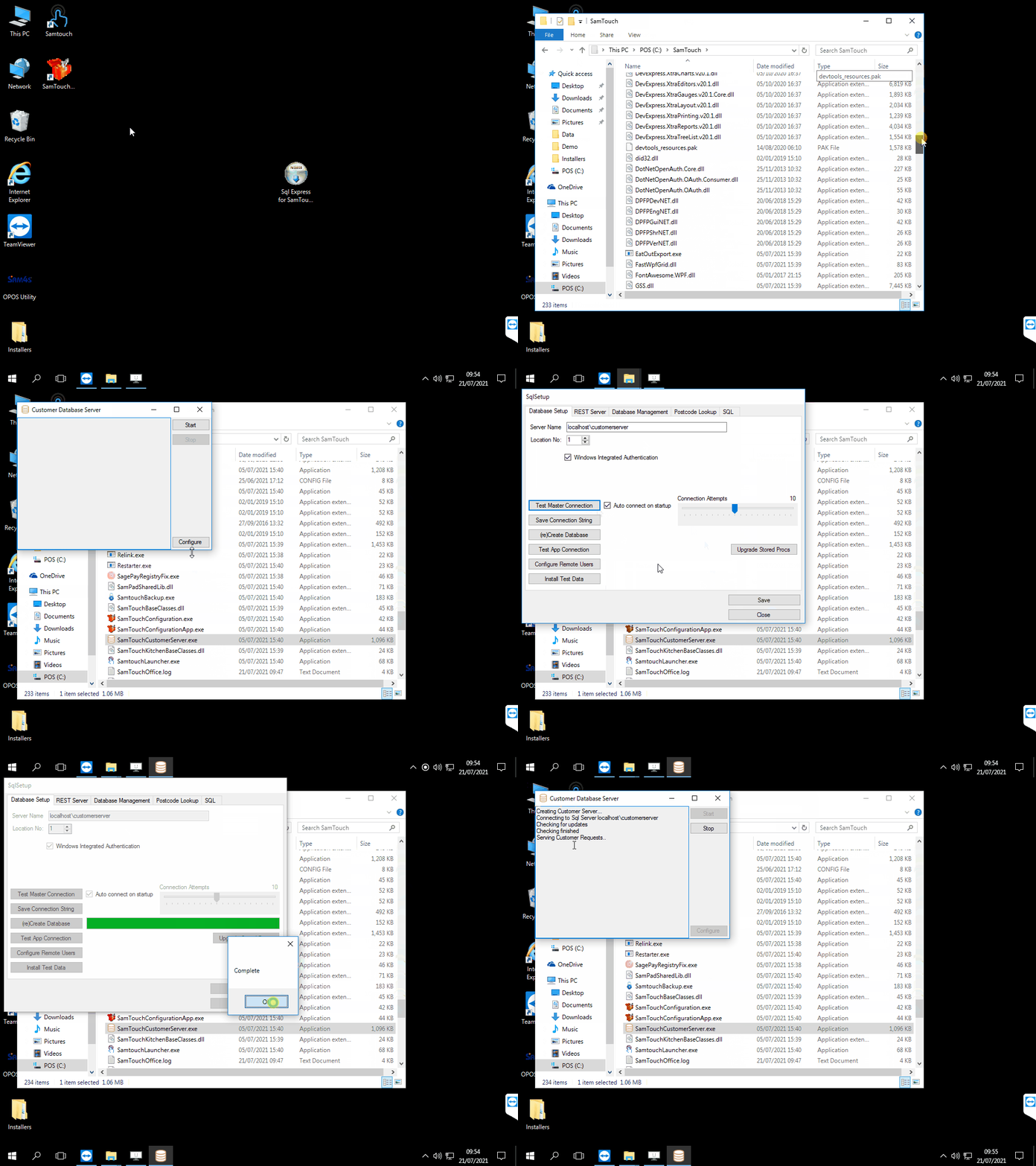
You can now click Start and the Customer Server should now be running. Do be aware that the customer server does not start up when on a start-up If you would like to set it so that it does boot on start-up, you will need to add a shortcut to the customer server in the Windows Start-up folder.
Settings for the customers within SamTouch
Now that we have setup the database locally, we can begin to configure SamTouch itself to work with the database. Once you have SamTouch open, go to the programming section and the navigate to Customer Settings -> Customer Options. From here, click the Customer Database tab. The top option on this list will determine what server you are using, so if you are running the server locally you will want to select Classic, however if you are using the cloud for the customer server, you will want to select Samtouch Office.
If you have more than one terminal and are using the local server, if you scroll a bit further down on the Customer Database tab you will have an option for the Customer Server IP Address. If this is the host terminal, the IP address will want to be 127.0.0.1 (this is the loopback address, so it will tell the machine to look at itself for the customer database, more commonly referred to as localhost), however if it is one of the other terminals, here you will want to put the IP address of the terminal which holds the database.
If after this the terminals cannot communicate with the database, there may be an issue with the firewall. Thankfully the Network Configuration tool has an option to add the customer server rules. Please refer to the Networking SamTouch guide for more information on how to do this.
We can now check to see if the customer server is up and running. If it is the local database, go to either Customer Groups or Loyalty Schemes from the Customer Settings tab. If you it lets you into here, then it is communicating with the server. If not, it will either error at you saying that it has been unable to connect, or if you are using the cloud for the server, it will tell you to edit these settings from SamTouch Office.
Migrating the Customer Database from one machine to another
If you are migrating from a 32-bit machine to 64-bit machine then you will come across an error when doing this, please contact Support and they will be able to assist with this.
There may be a situation where you need to migrate the local customer database from one machine to another, which can be done. We will just need to run some commands in command prompt in order to do so. Before doing this, ensure that the customer server is not running, or this may throw up an error.
- Go to the C: drive and create a folder called backup (this is case sensitive so needs to match exactly)
- On the Windows search bar, enter cmd and choose the option that appears called Command Prompt
- Enter or paste in the following line: sqlcmd -E -S localhost\customerserver -Q “backup database [gssposcustomer] to disk=’c:\backup\test.bak’ with init” This will backup the database
- Go to the backup folder on the C: drive and ensure there is a file called bak
- On the new terminal, create another folder called backup and place the bak file in here
- Once again go to Command Prompt and enter or paste in the following line: sqlcmd -E -S localhost\customerserver -Q “restore database [gssposcustomer] from disk=’c:\backup\test.bak’ with replace”
If you get no errors this should now have successfully restored the customer database onto the new machine.