Cash Drawer OPOS Setup
SamTouch has the capability to fire a cash drawer, however before it can do this it needs to be setup. When you receive a new machine that has been pre-imaged then you should not need to amend the OPOS as this should already have been setup. However, if you are installing an Operating System yourself or the OPOS does not work for any reason, then this can be done manually. Here we will run through how to setup the OPOS (if running from a SAM4S terminal) and tell SamTouch where to fire the drawer.
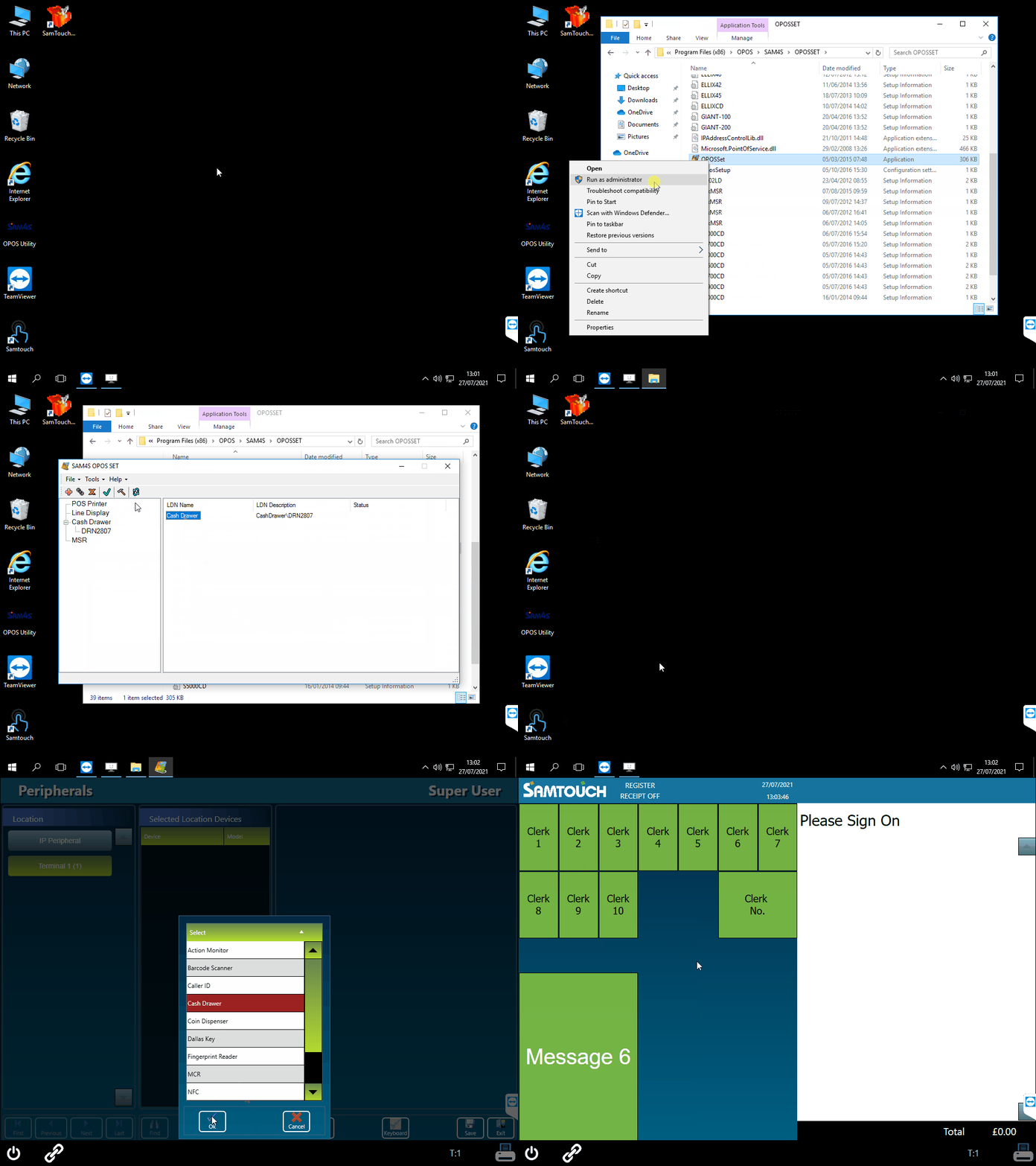
The first thing that we will need to do is make sure that SAM4S OPOS set is installed on the terminal. You can check this by going to This PC-> C: -> Program Files/ Program Files (x86) -> OPOS -> OPOSSET. If this folder exists and you can see OPOSSet.exe. Run this application as an administrator. This will open the SAM4S OPOS SET. On the left-hand side, highlight Cash Drawer and click the little red plus sign. This will open the Add New Device window. From the dropdown list under Select Device Name you will need to choose the correct device. If you are unsure which device to choose if you select one of them it will tell you which model it supports on the right-hand side. For Select Communication Type this can be left as None. In the Add New LDN field enter Cash Drawer. Click Next and this will add the LDN. You should now see the device under the Cash Drawer. Left click this and then on the right-hand side you should see under LDN Name Cash Drawer. Left click this and then click the Green Tick.
On the new Window, press the following keys:
- Open
- Claim
- Tick Device Enabled
- Open Drawer
This should now successfully have opened the cash drawer. If so, we can now move onto setting this up in SamTouch. In SamTouch, you will need to go to the following: Advanced Settings -> Peripherals -> Peripherals. In here choose the terminal that has the cash drawer connected to it and then click New.
From the list you will want to select Cash Drawer. Now on the right-hand side, from the drop down list next to Connection 1, choose the option which says OPOS. Click Save and the cash drawer should now be setup to fire, which you can test by finalising a transaction or pressing the No Sale key.
Please note that if SamTouch is not licenced then the cash drawer will not fire.