Toggle Integration Setup Guide
Introduction to Toggle
Toggle is an online gift card solution (www.usetoggle.com) who will supply upon request printed gift cards with either fixed amounts or open-ended cards. These cards can then be activated in an establishment and used at a later date. In order for the system to work, the SamTouch system needs to be connected to SamTouch Office. This means that cards can only be used within that tenant and cannot be used anywhere they shouldn’t be. The system also allows the card to be topped up or monies manually removed using Received on Account and Paid Out keys respectively.
Setting up Toggle
To setup Toggle the end user will first need to get an account created on the Toggle website. Once this is done, they will supply the customer with a set of API details. These details will need to be entered into SamTouch for the link to work.
Integration Settings
Advanced Settings > Options > Advanced > Integrations > Toggle.
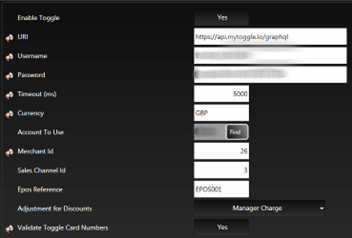
Enable Toggle: Enables the link.
URI: The URI needed to access the toggle site.
Username: This is supplied by Toggle for the API Link.
Password: This is supplied by Toggle for the API Link.
Timeout(ms): How long the system will wait before it times out, this should be ok left as default.
Currency: This should be left as default
Account to Use: One the Username and password are correct, pressing find will fill out this information.
Merchant Id: This is supplied by Toggle.
Sales Channel Id: This is supplied by Toggle.
Epos Reference: How will this terminal be addressed to Toggle. This will relate to the Site Reference which is setup within Toggle.
Adjustments for Discounts: Which discount should Toggle discounts process through.
Validate Toggle Card Numbers: Should the card number be checked with Toggle to make sure it’s valid.
Media Key Settings
Advanced Settings > Functions > Media
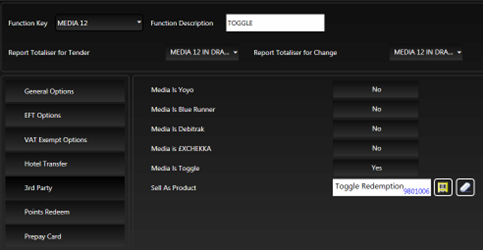
Media Is Toggle: Needs to be enabled on the Media Key used for taking Toggle Payments.
Sell As Product: Set this as a PLU for correct VAT calculations.
Screen Edit
Advanced Settings > Screen Edit
The following functions keys have been added:
Toggle Bal Query: Used to check the balance on a card.
Toggle Cancel: Used to cancel a card so it no longer works.
Toggle is also compatible with these function keys:
Paid Out: Used to remove money from a Toggle card (key needs to have flag “Paid Out Is Toggle” enabled).
Received: Used to top up the balance on a Toggle card (key needs to have flag “Received on Account Is Toggle” enabled).
Product Setup for Toggle Sale
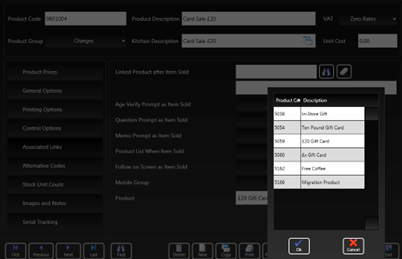
General Settings > Products > Product Maintenance > Associated Links
Product: Set this to the correct product setup in Toggle to issue the gift card.
Note: Multiple PLUs can be used for £10, £20 gift cards etc
Usage – Selling the Gift Cards
When the customer wishes to purchase a gift card(s) then simply sell these as normal PLUs during any normal sale, they don’t need to be sold independently of other items.
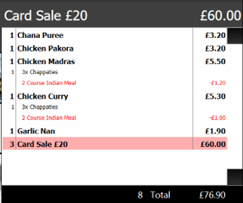
Once the transaction is finalised and the money taken it will then prompt the operator to activate each of the cards in turn. Once the card is accepted it will show the number starred out except the final 3 digits of the code.
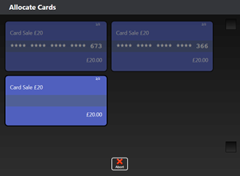
Simply tap each card and swipe the corresponding card until all the cards have been activated finishing with pressing Done. This will then activate all cards before printing a receipt with the card numbers on there.
Usage – Using the Gift Cards
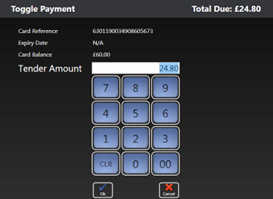
To use the cards the operator simply needs to press subtotal followed by a Media key which has been assigned to use Toggle (see above), this will then prompt the customer to enter how much money they wish to use.
This will default to the smaller of either the maximum value on the card or the value of the transaction for speed. Should any Toggle discounts be valid on the card then these will also be deducted from the sale total at this stage.
Usage – Other Functions
Toggle Top-Up
Simply press the toggle top up key (see above), this will immediately prompt for the card number that is to be topped up. Swipe the card then enter the top-up amount followed by the tender type. To complete the operation simply press Toggle Top Up again.
Toggle Paid Out
Simply press the toggle paid out key (see above), this will immediately prompt for the card number to pay out. Swipe the card then enter the paid out amount followed by the tender type. To complete the operation simply press Toggle Paid Out again.
Toggle Balance Check
Simply press the toggle balance check key and swipe the card, this will then show on the display the current value remaining on the gift card.
Toggle Cancel
Simply press the toggle cancel function key and swipe the card to remove the card from the system, this does not refund any money on the card, and it simply closes it. Should the balance need to be returned prior to this then they must do a pay out first. This does not “ban” the card and it can be freely loaded up again.