
TL;DR:
- A POS workflow is a sequence of steps from order entry to end-of-day reporting crucial for efficiency.
- Proper setup, staff training, and ongoing adjustments optimize sales speed, accuracy, and customer experience.
- Regular troubleshooting and system flexibility help businesses adapt and maintain smooth operations.
Running a busy café at lunchtime or managing a retail floor on a Saturday morning leaves little room for error. Slow checkouts frustrate customers, stock discrepancies create costly blind spots, and staff fumbling through an unfamiliar system can turn a five-minute transaction into a ten-minute ordeal. A well-structured POS workflow removes that friction entirely. In this guide, we walk you through everything from understanding what a POS workflow actually is, to setting one up from scratch, troubleshooting common problems, and fine-tuning it for peak performance. Whether you run a single café or a multi-site retail operation, the principles here will help you serve customers faster and with far fewer headaches.
Table of Contents
- Understanding POS workflows and why they matter
- What you need before setting up your POS workflow
- Step-by-step: Setting up your POS workflow
- Troubleshooting and optimising your POS workflow
- What most POS setup guides miss: The power of agility
- Streamline your POS workflow with expert support
- Frequently asked questions
Key Takeaways
| Point | Details |
|---|---|
| Map your workflow | Clarifying every step from sale to stock makes setup far smoother. |
| Prepare hardware and permissions | Have all devices, connections, and staff roles ready before setup day. |
| Always test thoroughly | Run peak-hour drills to spot and fix small issues before they become big ones. |
| Keep improving | Review your POS reports and workflow every few months for ongoing gains. |
Understanding POS workflows and why they matter
A POS workflow is the sequence of steps your business follows every time a sale is made. It covers the moment a customer picks up a product or places an order, right through to payment, receipt, inventory update, and end-of-day reporting. Understanding POS system basics is the first step to appreciating how much rides on getting this sequence right.
For retail businesses, a structured workflow keeps stock levels accurate, speeds up checkout queues, and ensures returns are processed consistently. For hospitality, it governs how orders flow from the front of house to the kitchen, how bills are split, and how end-of-shift reports are generated. In both sectors, a poorly defined workflow leads to the same outcome: mistakes, delays, and unhappy customers.
Core workflow stages typically include:
- Order entry (scanning a barcode or entering a menu item)
- Payment processing (card, cash, or contactless)
- Receipt generation (printed or digital)
- Inventory update (automatic stock deduction)
- Reporting (sales summaries, staff performance, peak hours)
Cloud-based systems are now the preferred choice for scalability. Popular UK systems include Square for small businesses, Lightspeed and EPOS Now for analytics and multi-site operations, Shopify for omnichannel retail, and TouchBistro for hospitality table management.
| System | Best for | Key strength |
|---|---|---|
| Square | Small retail/cafés | Free entry plan, simple setup |
| Lightspeed | Multi-site retail | Advanced analytics |
| Shopify POS | Omnichannel retail | Online/in-store sync |
| TouchBistro | Restaurants | Table and floor management |
| EPOS Now | Hospitality/retail | Flexible integrations |
Worth remembering: Why POS matters goes beyond speed. A well-tuned workflow directly shapes how customers feel about your business. Slow, error-prone transactions erode trust. Fast, accurate ones build loyalty.
What you need before setting up your POS workflow
Before you touch a single setting, take stock of what you already have and what you still need. Rushing into setup without preparation is one of the most common reasons businesses end up with a workflow that breaks under pressure.
On the hardware side, you will typically need a POS terminal or tablet, a barcode scanner, a receipt printer, a cash drawer, and a card payment device. For hospitality, kitchen display screens and order printers add another layer. For restaurant POS setup, connectivity is critical. A dropped WiFi signal during a dinner service can halt your entire operation, so consider a wired backup or a 4G router.
For retail, omnichannel integration is increasingly essential. Shopify POS allows inventory to sync between your online store and physical locations, supports click-and-collect (BOPIS), and manages returns across channels. UK payment rates typically sit between 1.6% and 1.7% for card transactions, so factor this into your cost planning when configuring payment settings.
On-premise vs. cloud-based POS at a glance:
| Feature | On-premise | Cloud-based |
|---|---|---|
| Upfront cost | Higher | Lower |
| Ongoing fees | Minimal | Monthly subscription |
| Scalability | Limited | High |
| Remote access | No | Yes |
| Offline capability | Yes | Varies (local cache) |
Before going live, also confirm your compliance checklist:
- PCI DSS compliance for card payment security
- GDPR compliance for customer data storage
- Receipt storage requirements (HMRC recommends keeping records for at least six years)
- Staff permission levels configured to limit access appropriately
For a detailed retail POS checkout setup, map out your floor plan, assign tills to locations, and test every device before your first real customer walks in.
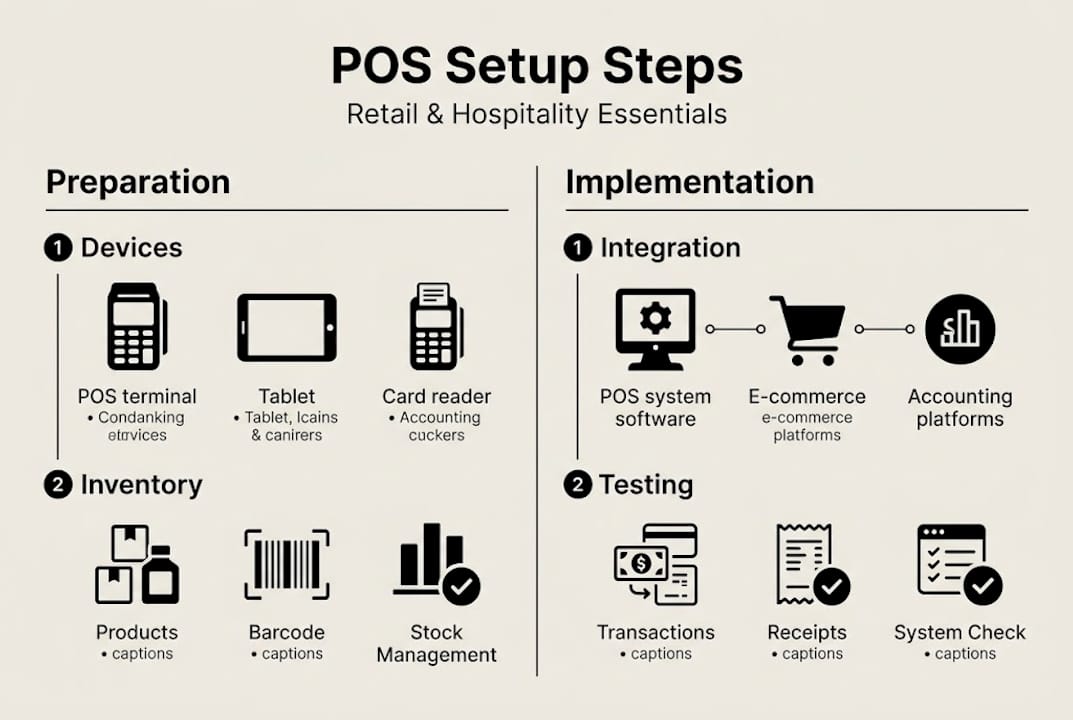
Pro Tip: Before going live, scan your actual product range through the system. It sounds obvious, but many businesses discover barcode mismatches or missing items only during their first real transaction.
Step-by-step: Setting up your POS workflow
With everything in place, here is a clear process to get your workflow running from day one.
- System setup and software configuration. Install your chosen POS software, connect it to your payment provider, and configure your tax settings for UK VAT. Set your business locations and assign each terminal to the correct site.
- Hardware installation. Connect your receipt printer, barcode scanner, and cash drawer. Pair your card reader. Test each device individually before linking them together.
- Staff roles and logins. Create individual user accounts for each team member. Assign permission levels so that, for example, only managers can process refunds or access end-of-day reports.
- Inventory entry. Import your product catalogue or menu. Use bulk import via CSV where possible to save time. Assign categories, prices, and stock levels to each item.
- Payment configuration. Enable all accepted payment methods: cash, chip and PIN, contactless, and any digital wallets. Confirm your card processing rates and set up tipping prompts if relevant.
- Test run. Process a series of dummy transactions covering different scenarios: a standard sale, a refund, a split bill, and a void. Check that inventory updates correctly after each transaction.
A modern POS can reduce transaction times by up to 30%, but only if the workflow is configured correctly from the start. Enabling offline mode is a step many businesses skip and later regret. Cloud POS systems with local caching allow your terminals to keep processing sales even when your internet drops, syncing data once connectivity is restored.
For a thorough step-by-step retail workflow or a quick retail POS checklist, these resources will help you confirm nothing has been overlooked before opening day.
Pro Tip: Run a simulated peak hour before you open. For a café, replicate a lunchtime rush with staff taking multiple orders simultaneously. For retail, simulate a Saturday afternoon queue. You will surface bottlenecks that a quiet test simply cannot reveal.
Troubleshooting and optimising your POS workflow
Even a carefully planned workflow will encounter problems. Knowing how to respond quickly keeps your business running and your customers patient.
The most common issues include:
- Connectivity problems causing transactions to fail or slow down
- Failed software updates leaving terminals running outdated versions
- Hardware faults such as printers jamming or scanners losing pairing
- Contactless payment failures often linked to connectivity limits or card reader firmware
- Login errors when staff accounts are misconfigured or passwords are forgotten
For most of these, the fix is simpler than it looks. As covered in the POS hardware troubleshooting guide, always check power and network connectivity first before escalating to a support call. A loose cable or a router that needs restarting resolves the majority of reported faults.
Pro Tip: Keep a laminated one-page troubleshooting guide at each till point. List the five most common issues and their first-response fixes. Staff can resolve most problems in under two minutes without needing to call a manager.
Beyond fixing problems, optimisation is where the real gains are made. Review your sales reports weekly to identify your busiest periods. Adjust staff rotas to ensure your most experienced team members are on the floor during peak hours. Use your system’s analytics to spot slow-selling products, identify upsell opportunities, and track average transaction values over time.
For ongoing improvement, consult POS best practices to benchmark your workflow against what is working for similar businesses across the UK.
Remember: A well-tuned POS workflow does not just make life easier for your staff. It directly reduces end-of-day discrepancies, shortens customer wait times, and creates the kind of smooth experience that brings people back.
What most POS setup guides miss: The power of agility
Most setup guides treat a POS workflow as a one-off project. Configure it, test it, launch it, and move on. In our experience working with retail and hospitality businesses across the UK, that mindset is precisely what leads to stagnation.
The businesses that get the most from their POS systems are the ones that treat the workflow as a living process. One retailer we worked with was struggling with persistent till queues despite having perfectly functional hardware. The fix had nothing to do with the technology. It came from shifting staff login times so that a second till opened fifteen minutes before their busiest period rather than at the start of it. A small operational tweak, not a technical one.
Staff involvement matters enormously here. The people using your system every day will notice friction points long before your reports do. Build a habit of asking for feedback monthly and acting on it. When choosing a POS system, prioritise flexibility and ease of configuration so that adapting the workflow as your business evolves does not require a specialist every time. Agility, not perfection at launch, is what separates a good POS workflow from a great one.
Streamline your POS workflow with expert support
Building a reliable POS workflow is one of the most impactful investments you can make in your retail or hospitality business. The right combination of hardware and software makes the difference between a system that slows you down and one that genuinely drives efficiency.
At YCR Distribution, we supply a full range of POS software options designed for both hospitality and retail, including SAMTOUCH and EZEEPOS, alongside a trusted selection of POS hardware from leading brands like SAM4S and iMin. Whether you are setting up your first system or upgrading an existing one, our team can help you find the right fit. Get in touch to discuss your requirements and we will help you build a workflow that works from day one.
Frequently asked questions
What is a POS workflow?
A POS workflow is the series of steps a business follows to process sales, track inventory, and complete transactions using their Point of Sale system. It covers everything from order entry through to payment, receipt, and end-of-day reporting.
How do I choose the right POS system for my business?
Assess your business needs, budget, and integration requirements, then compare features of popular UK systems like Square, Lightspeed, Shopify, or TouchBistro. Cloud-based systems are generally preferred for their scalability and remote access.
What are common troubleshooting tips for POS hardware?
First, check your power and network connectivity, as most hardware faults stem from these basics before considering software resets or calling support. A simple router restart or cable check resolves the majority of reported issues.
How often should I review and update my POS workflow?
It is best practice to review your workflow at least quarterly or after major business changes, such as new menu items, product lines, or a change in peak trading patterns.
Can I run my POS workflow offline if my internet fails?
Yes, many modern cloud POS systems include offline mode with local caching to ensure sales continue uninterrupted when connectivity drops, with data syncing automatically once the connection is restored.