
Compact 3-inch thermal receipt printer
BIXOLON SRP-Q300II
A front-exit receipt printer for counters where space is tight. Connect it to a till over USB or Ethernet, or use USB-C with a compatible tablet for a compact mobile POS setup.
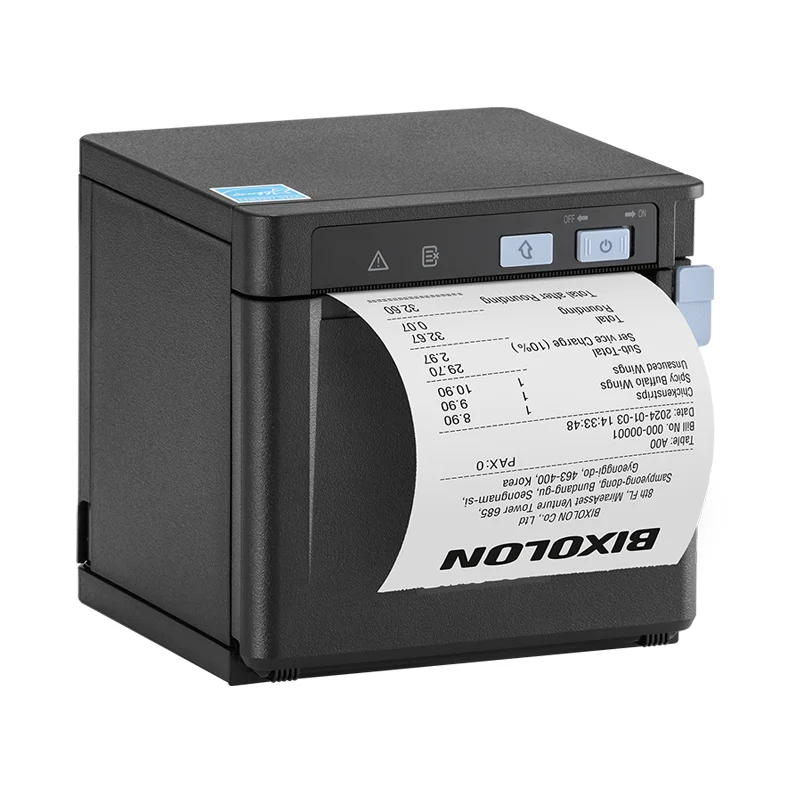
Plan your counter around a small printer
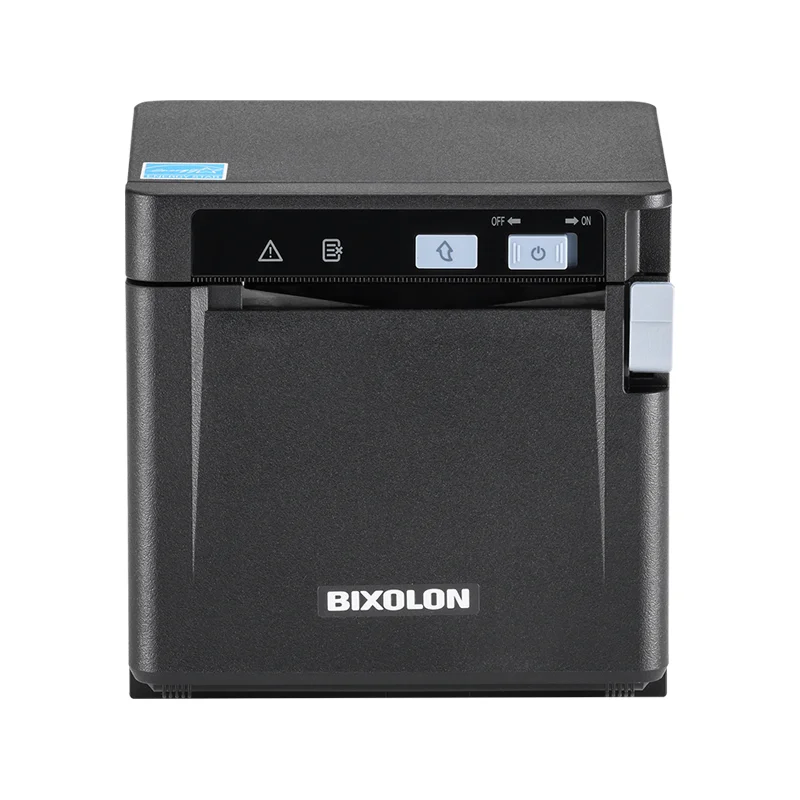
Collect receipts from the front. Place the printer where staff can reach the ticket as it prints. Allow space to open the paper cover and change the roll.
Choose your receipt width. Use 80 mm thermal paper as standard. For a shorter line length, fit the optional partition for 58 mm rolls and confirm your till can format a narrower receipt.
Keep an eye on paper status. The printer monitors paper end, near end and cover open, and uses LEDs to communicate status. The auto-cutter separates receipts at the end of each transaction.
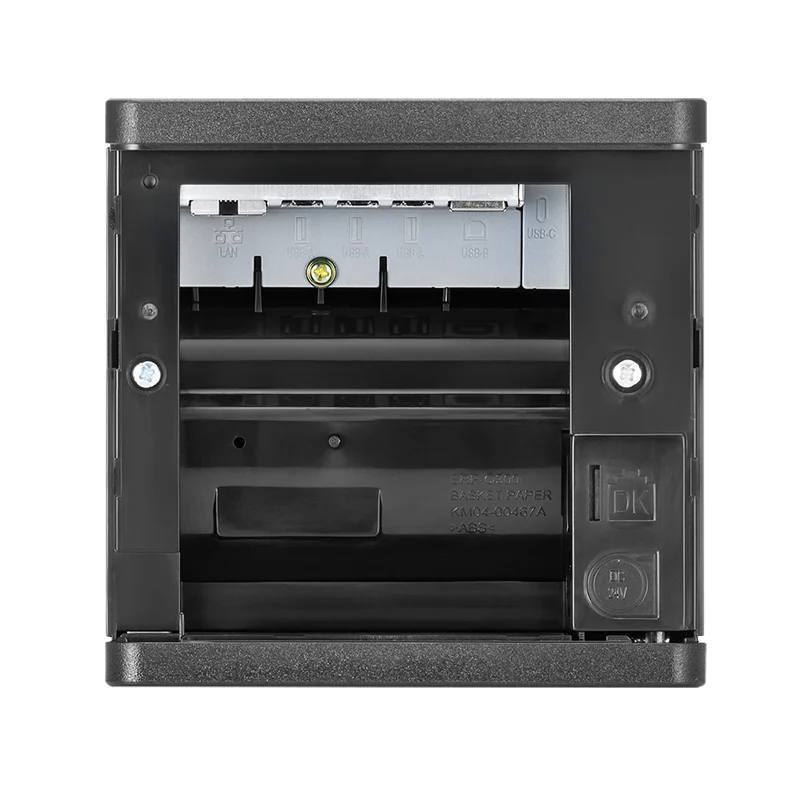
Connect it to your POS
Tablet checkout. USB-C supports data, USB network tethering and up to 18 W of Power Delivery for a compatible device. Check the tablet, cable and POS app together before choosing this setup.
Wired or wireless. Ethernet is standard for a wired network. If the installation needs wireless connectivity, choose the appropriate WLAN or Bluetooth version and confirm that your POS software supports it.
Attach compatible peripherals. Three USB Type-A host ports provide connection options for accessories. Check with your POS provider which devices are supported over the printer’s host ports.
Receipts at the café counter and retail till
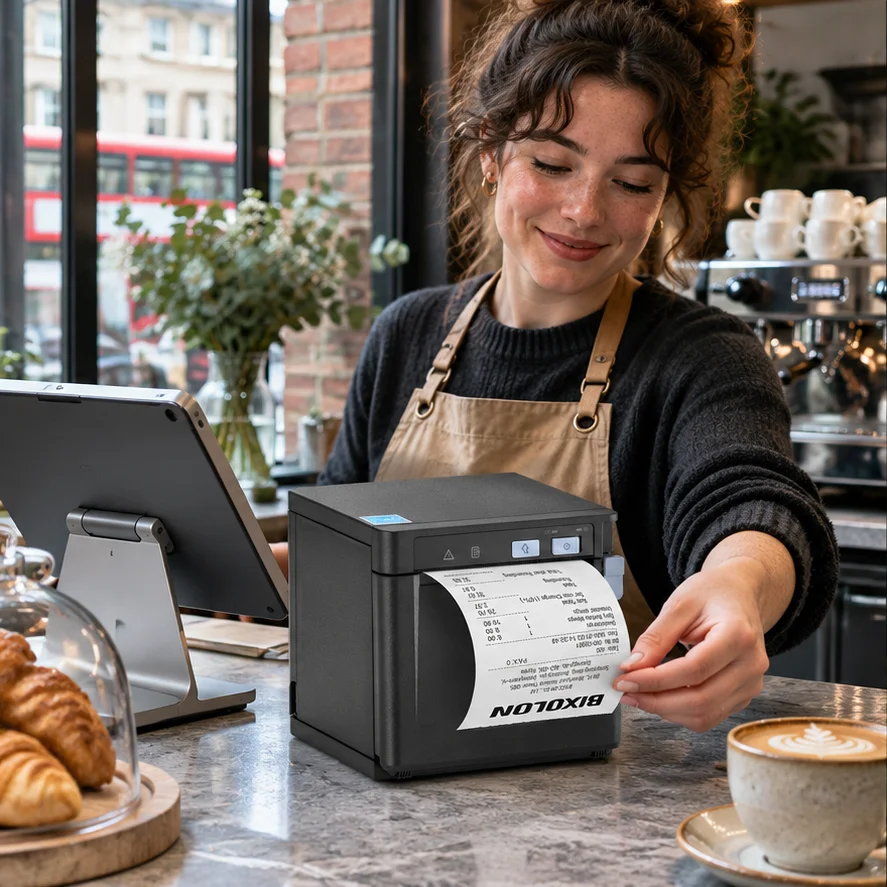
Café and takeaway counter
Place the cube beside the ordering tablet so staff can collect customer receipts without reaching across the counter. Check the tablet’s charging needs if you plan to power it through the printer’s USB-C connection.
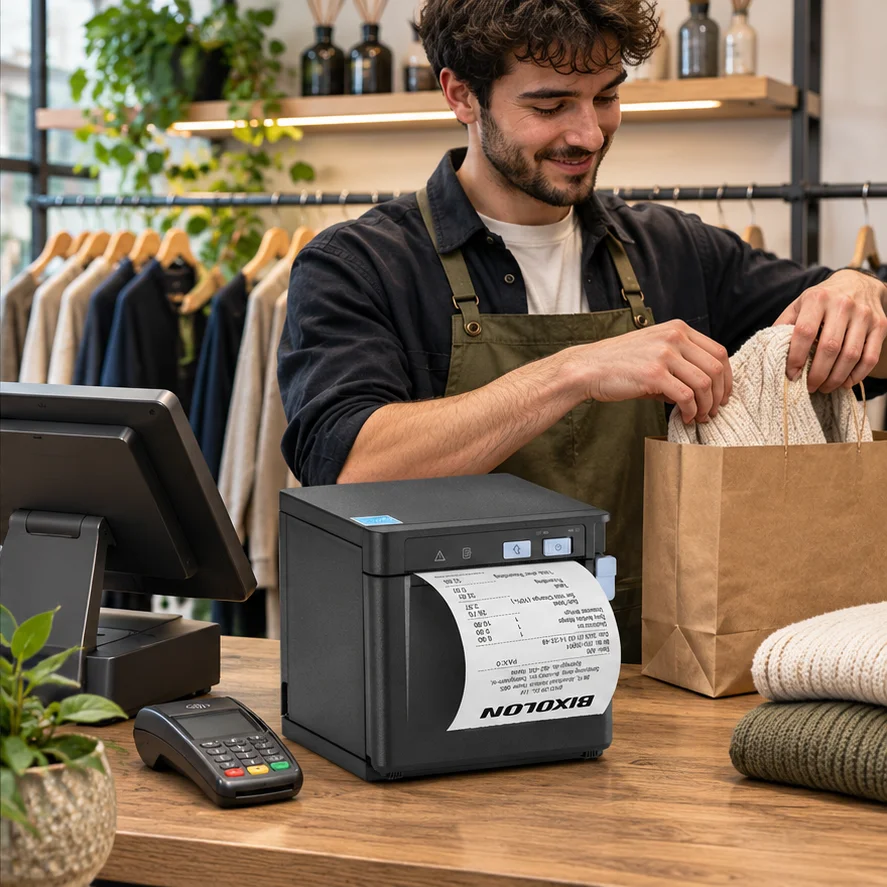
Retail checkout
Keep the printer within reach of the bagging area and use Ethernet where the POS application prints over a wired network. Confirm the cash drawer and receipt template before rolling out to other tills.
Generated illustrations of typical business settings.
Technical specifications
| Print method | Direct thermal |
|---|---|
| Speed and resolution | Up to 250 mm/sec, 203 dpi |
| Maximum print width | 72 mm |
| Receipt paper | 80 mm standard. Optional 58 mm with the 2-inch partition. |
| Roll diameter and thickness | Up to 81 mm diameter, 0.05–0.08 mm thick |
| Sensors | Paper end, paper near end and cover open |
| Standard interfaces | 3 × USB Type-A host, 1 × USB Type-B, 1 × USB Type-C and Ethernet |
| Wireless options | WLAN or Bluetooth on selected configurations |
| USB-C Power Delivery | Up to 18 W to a compatible mobile device |
| Cash drawer connections | Supports two via a Y-type adapter |
| Auto-cutter rating | 1.5 million cuts, as rated by BIXOLON |
| Dimensions (W × D × H) | 128 × 125 × 125 mm |
| Weight | 1.23 kg |
| Power input | External AC adapter, 100–240 V AC, 50/60 Hz |
| Operating conditions | 0–40 °C, 10–80% relative humidity |
| Enclosure rating | IP21 |
| Emulation | BXL/POS™ |
| Optional accessories | 58 mm partition, tablet stand, mini LCD display, external buzzer and compatible USB cables |
Frequently asked questions
Does it use ink or a ribbon?
No. The SRP-Q300II uses direct thermal receipt paper.
Can it charge my tablet while printing?
Its USB-C port can supply up to 18 W for compatible devices. Confirm Power Delivery, the cable and your POS app’s ability to communicate with the printer.
Are Wi-Fi and Bluetooth included?
USB and Ethernet are standard. Select an order code with WLAN or Bluetooth if you need wireless connectivity.
Can I use my existing 58 mm paper?
Check the paper diameter and thickness as well as the width. You will need the optional 58 mm partition and a receipt layout set up for the narrower roll.