
Windows countertop POS
SAM4S Sapphire
A touchscreen POS terminal for retail and hospitality. Choose black or white, then specify the Windows configuration, customer display and peripherals for your counter.
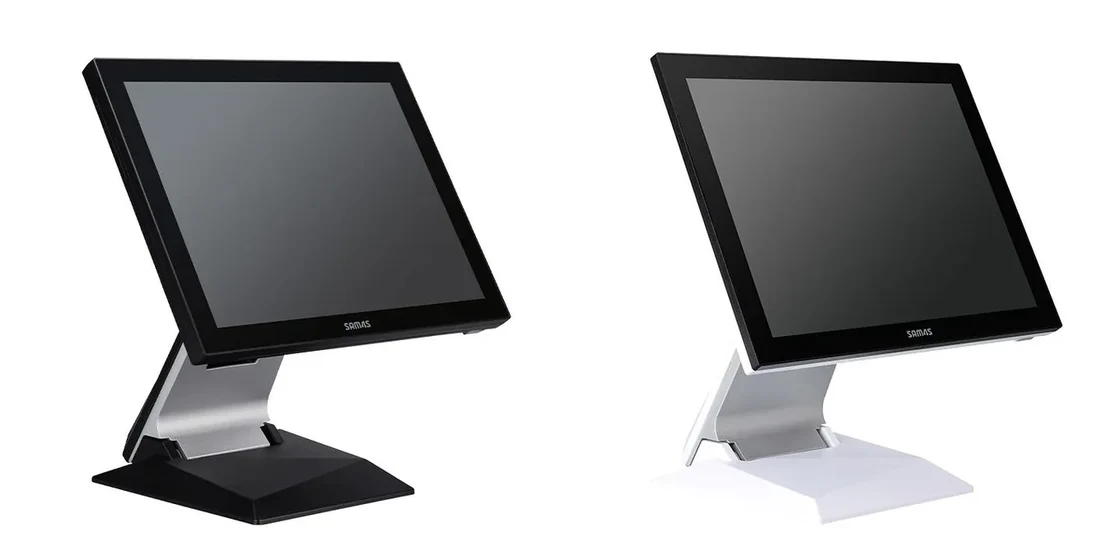
Compare the two YCR configurations
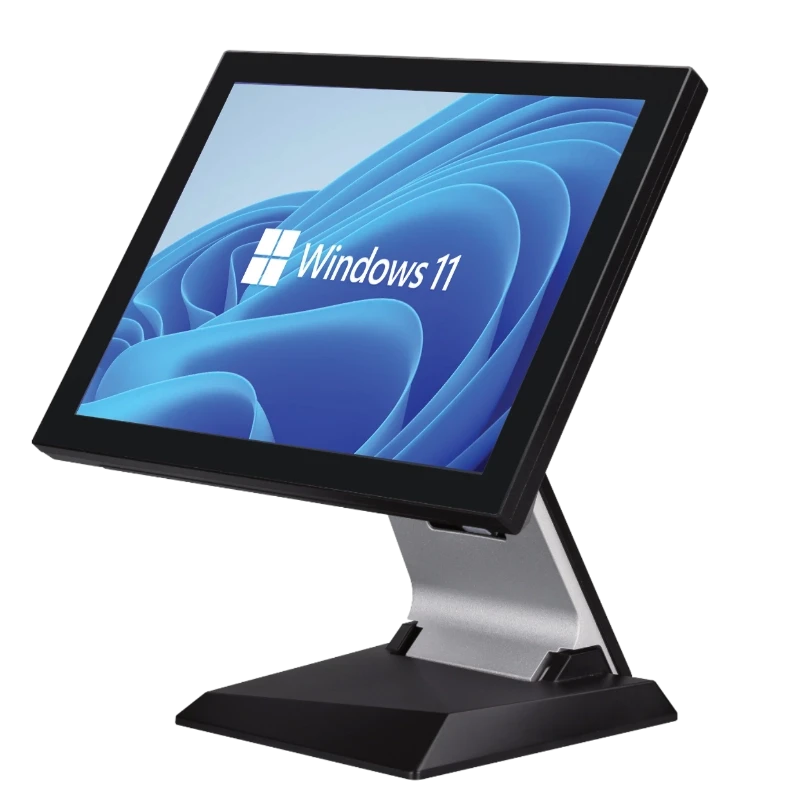
Sapphire Black
YCR SKU S4-SAPPHIRECNB. Windows 11 IoT, 8 GB RAM and 128 GB SSD as listed by YCR. Confirm the processor before ordering.
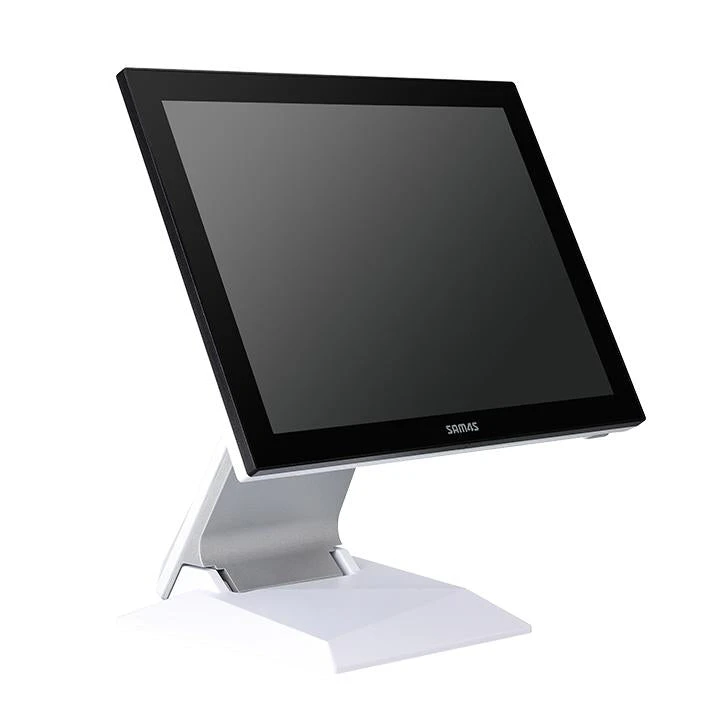
Sapphire White
YCR SKU S4-SAPPHIRENNW. Intel Celeron J6412. The product title specifies no operating system. Confirm the licence, RAM and SSD before ordering.
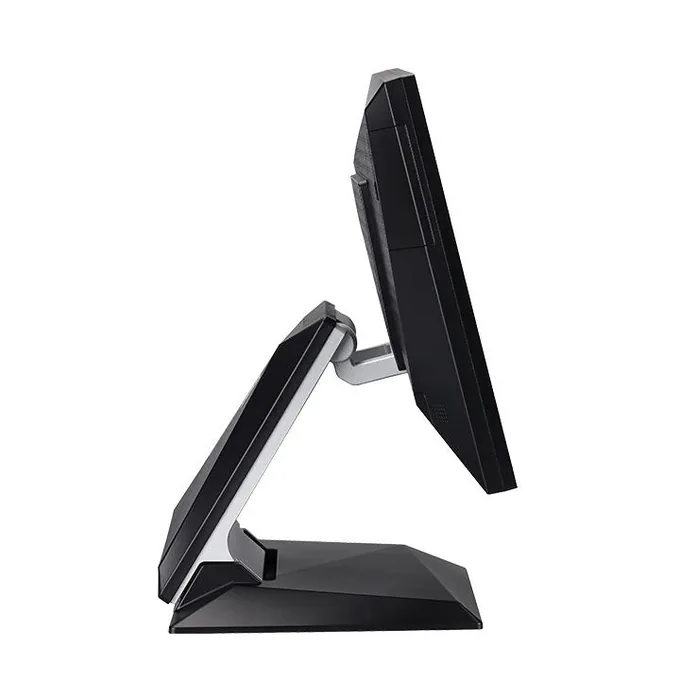
Set up your checkout
Adjust the screen for the operatorThe folding stand lets staff set a comfortable viewing angle. SAM4S also lists a VESA wall-mount option for installations where counter space is limited.
Connect your peripheralsUSB and serial connections give installers options for compatible receipt printers and barcode scanners. Check the drawer voltage and connector before specifying a cash drawer.
Add a customer displayChoose a two-line display for basic sale information or ask about a rear LCD for itemised orders and other content supported by your POS software.
Fit the checkout to the way you trade
Start with the way staff take orders, scan products and hand over receipts. Then choose the finish, customer display and peripherals for the site.
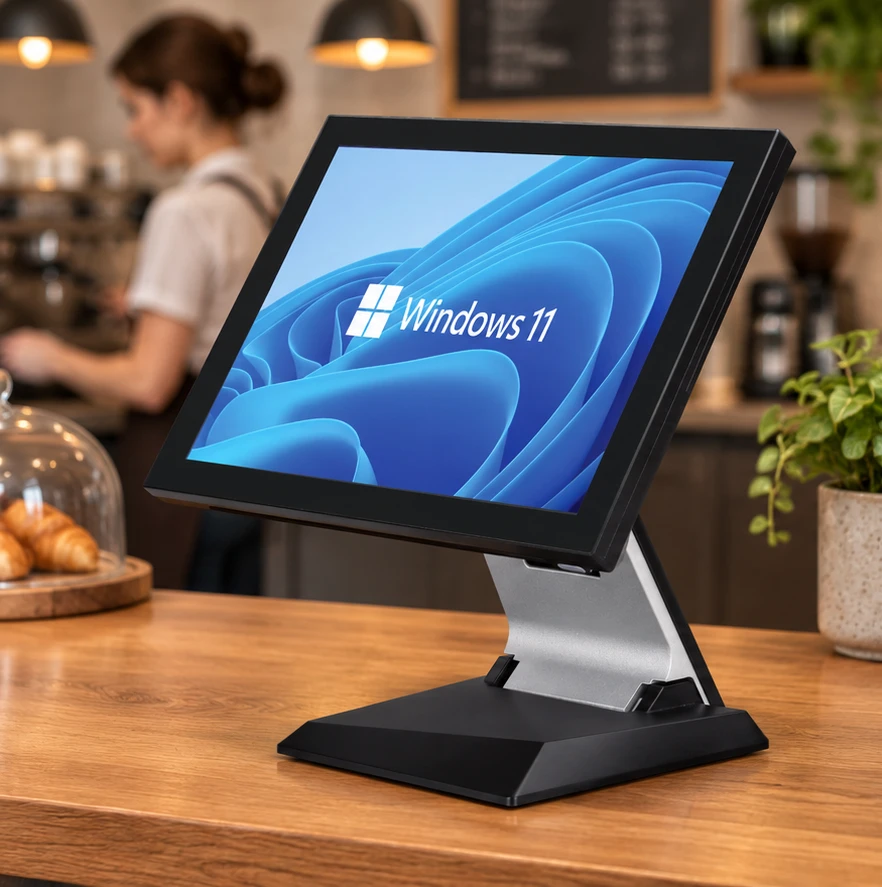
Cafés, bars and restaurants
At a café counter, use the operator touchscreen for menu items and modifiers. For table service, check whether your Windows POS application can manage open orders and route food and drink tickets to separate printers. A customer display can help diners check their takeaway order before paying.
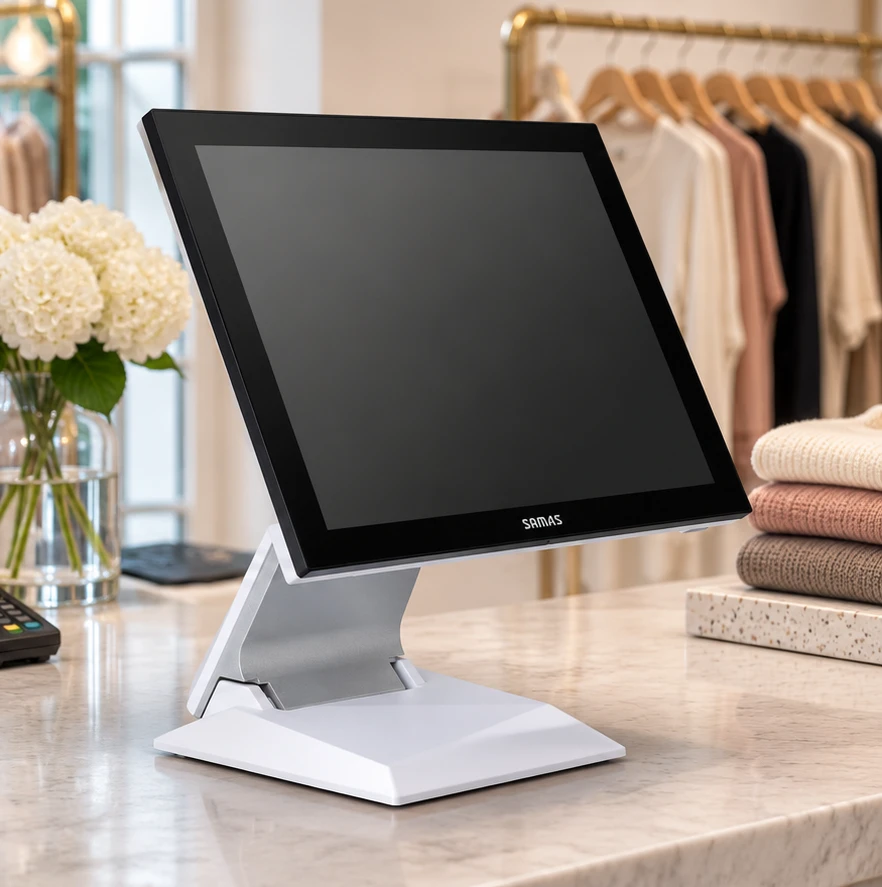
Retail and convenience
Build the till around a compatible barcode scanner, receipt printer and cash drawer. Choose a two-line display for basic sale information or a larger rear screen if your software can show basket lines or promotions. Check space for the scanner, drawer and customer’s line of sight before fitting the stand.
Café and shop photography illustrates typical settings.
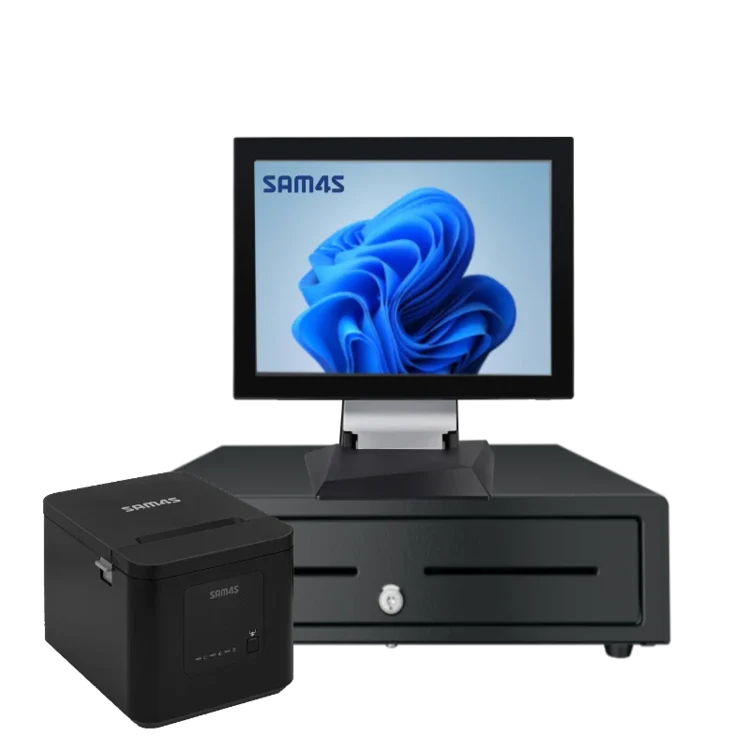
Build a complete till point
Choose a standalone terminal for a counter upgrade, or ask YCR to quote a Sapphire with a compatible receipt printer and cash drawer. The bundle shown uses separate peripherals.
- Receipt printer and scanner. Check the model, connection and Windows driver. If you are reusing a serial peripheral, confirm its port requirements before ordering.
- Cash drawer. Confirm whether it connects to the terminal or printer, and check the connector, voltage and trigger requirements.
- Customer display. Check the mounting option, the content your POS software can send, and the angle at which customers will see it.
- Windows and networking. Specify the Windows edition and licence your application requires, and check where Ethernet and power will reach the new till.
Sapphire technical specifications
This table describes the manufacturer’s SAPH-560 reference configuration. Use the YCR product cards above to check the two specific listings.
| Reference model | SAPH-560, as shown in SAM4S’s current specifications. Confirm the exact SKU with YCR. |
|---|---|
| Processor | Intel N95 (up to 3.4 GHz) or Intel N97 (up to 3.6 GHz), depending on configuration |
| Memory | 4 GB DDR4 listed in the core specification, expandable up to 32 GB |
| Storage | 128 GB SSD listed, with options up to 512 GB |
| Operator display | 15-inch LED-backlit LCD, 1024 × 768, with projected capacitive touch |
| Windows options | Windows 10 or Windows 11 IoT Enterprise LTSC, depending on the SKU and licence ordered |
| Peripheral ports | 6 × USB, 3 × serial as standard with optional expansion to 6, 1 × Ethernet and 1 × DisplayPort |
| Cash drawer | One port with two channels and selectable 12 V or 24 V output |
| Audio | Line out and internal 2 W speaker |
| Optional accessories | 2-line LCD, 9.7-inch or 15-inch rear display, magnetic stripe reader and VESA wall mount, subject to configuration |
| Power | 100–240 V AC input, 12 V DC / 5 A output (60 W) |
| Dimensions and weight | 352 W × 225 H × 363 D mm and 5.3 kg, as listed by SAM4S |
| Finishes | Black or white |
The manufacturer leaflet covers the earlier SAPH-500 Windows and SAPH-A00 Android versions. Use the table above for the SAPH-560 reference configuration.
Questions before you order
Can I specify black or white?
Yes. Include your preferred finish, processor and Windows requirements when requesting a quote so YCR can confirm the exact configuration and availability.
Can I use my existing printer or scanner?
Share the peripheral model and connection type with YCR. Compatibility depends on the terminal ports, Windows drivers and your POS software.
Can I add a customer-facing screen?
SAM4S lists a two-line display and 9.7-inch or 15-inch rear LCD options. Confirm the screen size, finish and application support when quoting.
Does the terminal include a printer, drawer or POS software?
Ask for an itemised quote. The terminal, Windows licence, POS application and peripherals depend on the configuration or bundle ordered.
How do I identify the replacement for an older Sapphire?
Send the model number and details of your existing peripherals. The Sapphire family spans several revisions, so YCR can check the display, processor, ports and Windows requirements against the replacement SKU.